
Guide Chapters
Product support / Chapter 10
10. Tools Workspace
Use the Tools workspace for configuration utilities, automation support, run evidence, and licensing.
The Tools workspace contains supporting utilities for configuration management, automation, run evidence, upgrade migration, and licensing.
10.1 Configuration
Use Configuration to compare config versions and manage reusable templates.
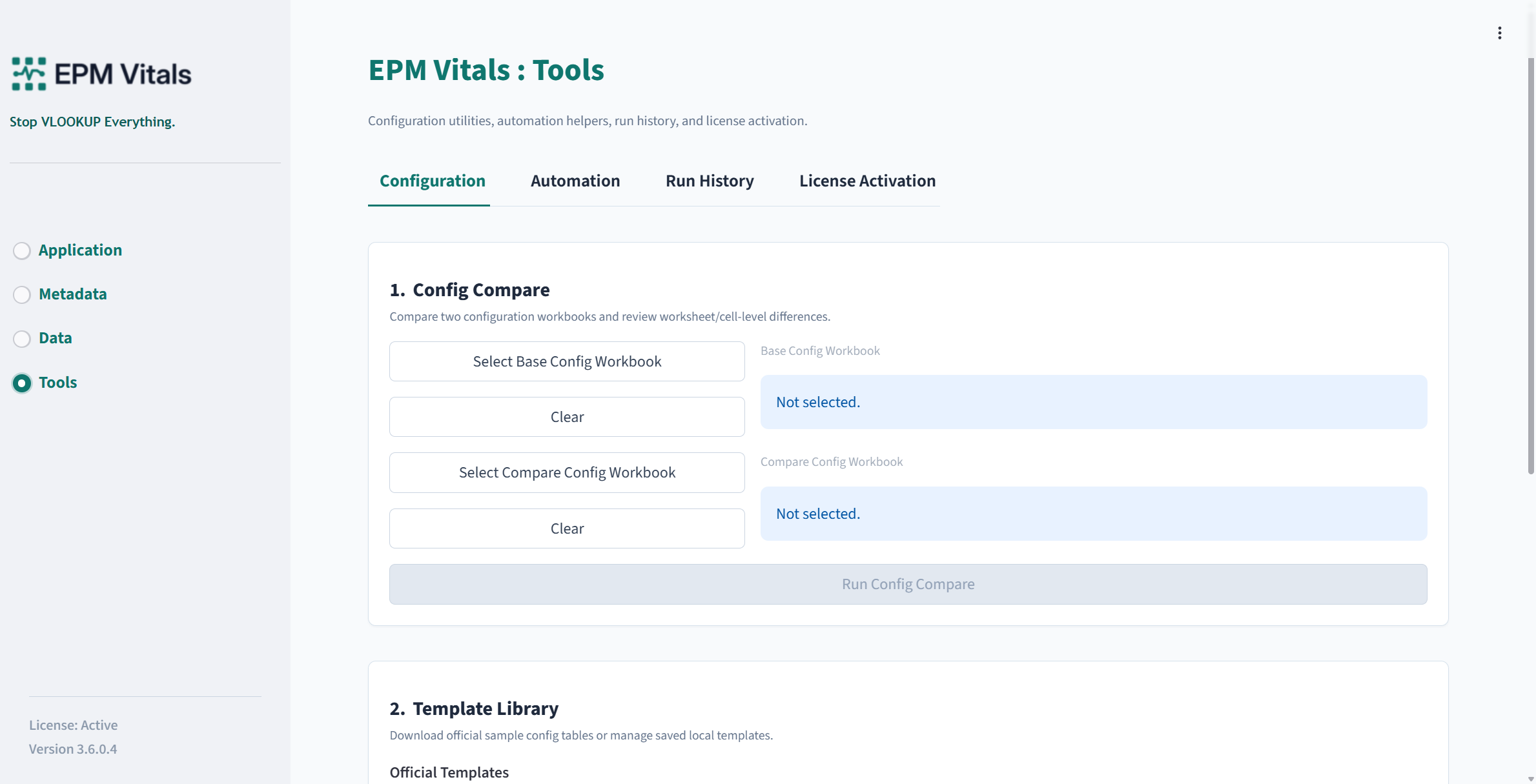
Config Compare workflow:
- Upload the first configuration workbook.
- Upload the second configuration workbook.
- Click
Run Config Compare. - Review differences.
- Download the compare result.
Template Library workflow:
- Open the Template Library area.
- Review saved configs and sample configs.
- Download a sample config if needed.
- Reuse validated templates in Validation, Convertor, Configure Wizard, or readiness workflows.
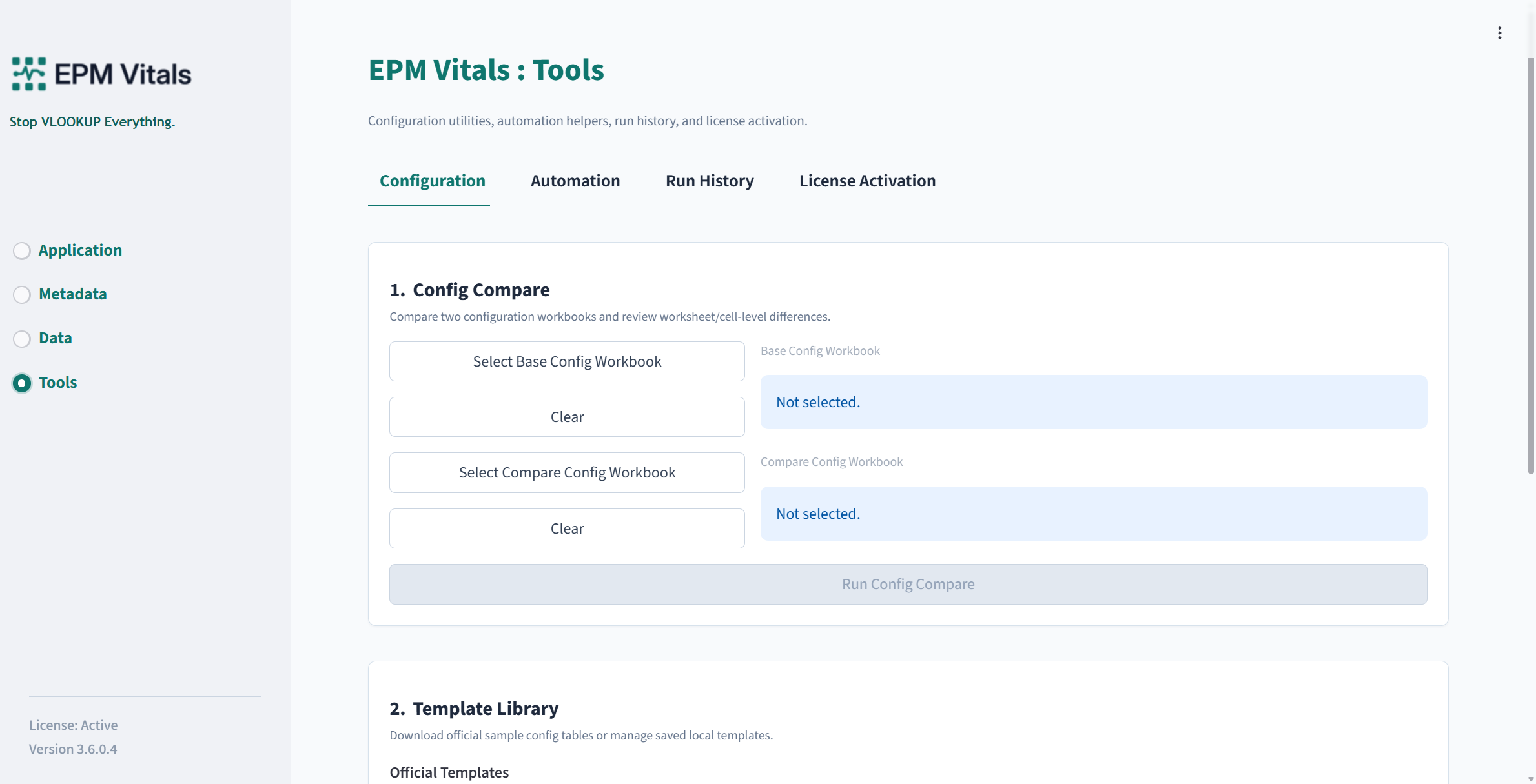
Typical use cases:
- Compare two config versions.
- Freeze a reviewed config before delivery.
- Reuse an effective config across repeated runs.
10.2 Automation
Use Automation to generate local command or BAT scripts for repeatable runs.
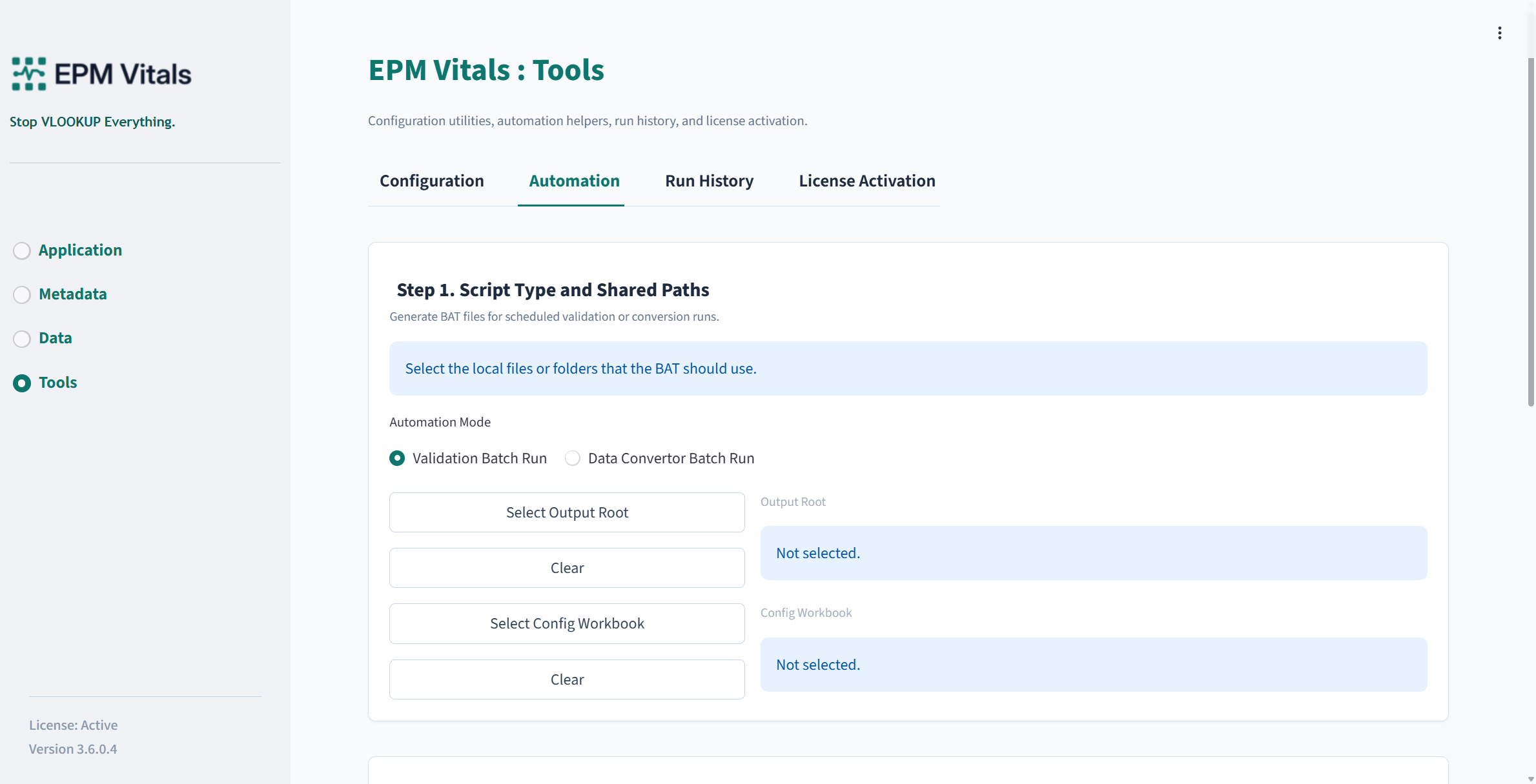
Inputs:
- Module type.
- File paths.
- Config path.
- Output path.
- Module-specific options.
Recommended workflow:
- Select the module or workflow type.
- Enter local file paths.
- Generate the command or BAT script.
- Download the script.
- Review the paths before running it locally.
Notes:
- Generated scripts run on the user's machine.
- Local paths must remain valid.
- Automation does not change the rule that production data should not be sent to support.
10.3 Run History
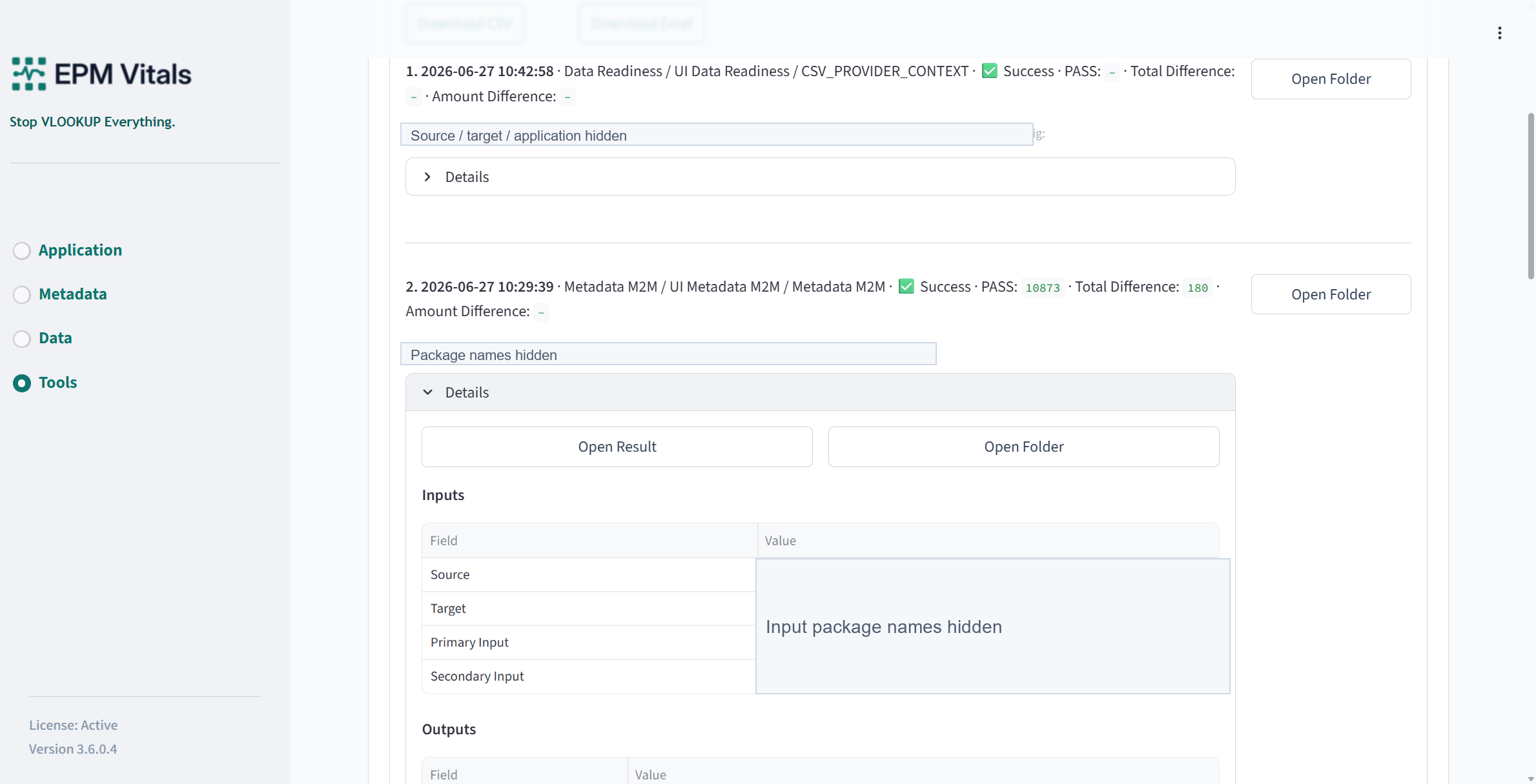
Use Run History to find previous runs, open outputs, export history, and clean up records.
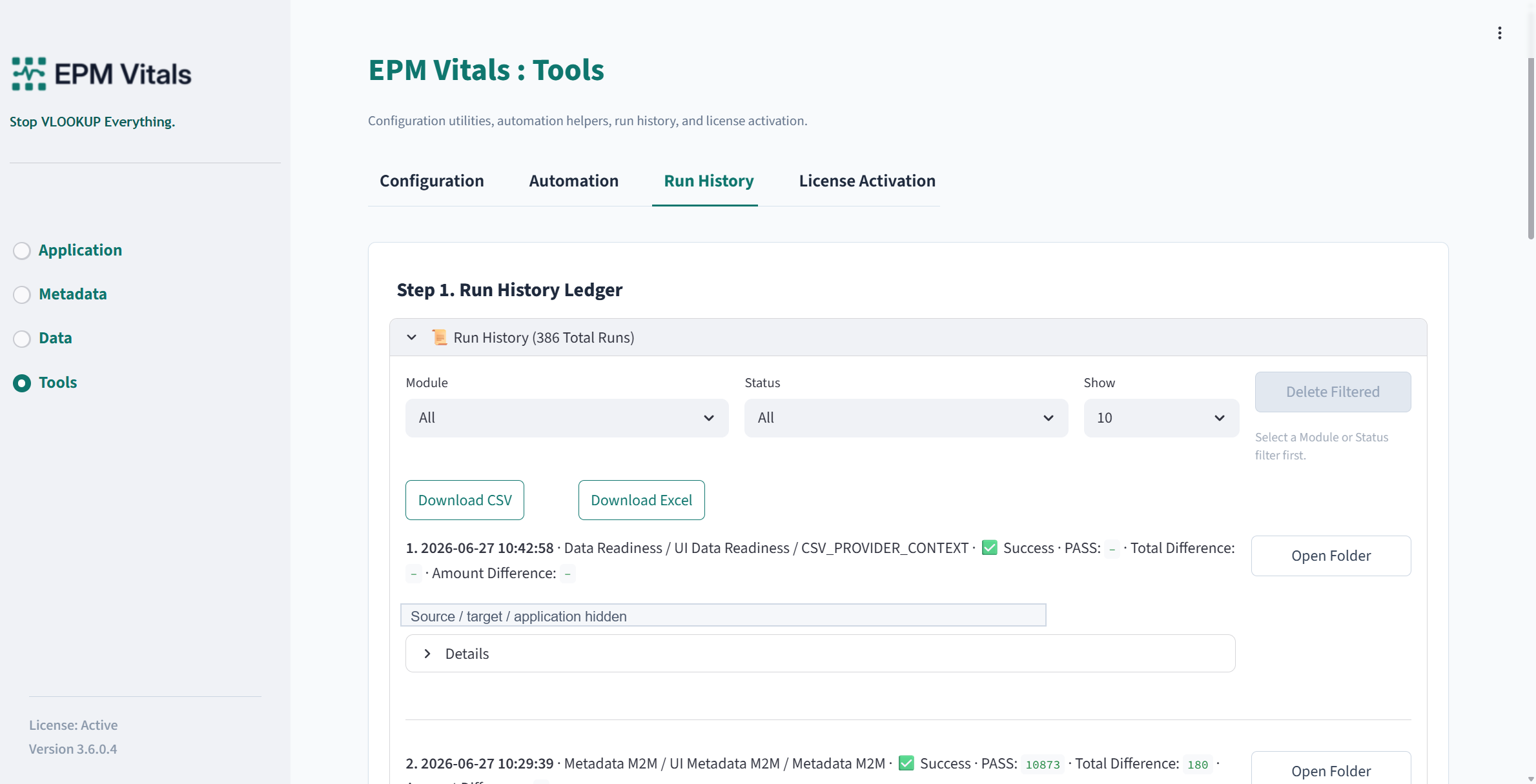
Filters:
- Module.
- Status.
- Show count.
Key buttons:
Open FolderOpen ResultOpen SummaryDeleteDownload CSVDownload Excel
Recommended workflow:
- Filter by module and status.
- Select the run you want to inspect.
- Open the result, summary, or run folder.
- Export history if you need a project evidence list.
- Delete obsolete run records only when the project no longer needs them.
Outputs:
- CSV history export.
- Excel history export.
- Access to local result files and run folders.
10.4 Upgrade Assistant
Use Upgrade Assistant when you have installed or extracted a new EPM Vitals package and want to carry forward selected local assets from an older package.
The assistant generates a Windows BAT script. It does not run the migration inside EPM Vitals, and it does not activate a license, rebuild indexes, or reprocess business files.
Typical assets:
License: copieslicense.datand the package-local time guard sidecar if it exists.Application Profiles: copies initialized application profiles, including profile-owned internal workbooks and derived indexes, while excluding background job and staging folders.Template Library: copies reusable configuration templates.Run History: optional; copies the history CSV for reference.Run Outputs: optional; copies historical run folders and can be large.Generated Configs: optional; copies generated configuration workbooks for manual reference.
Recommended workflow:
- Open
Tools > Upgrade Assistant. - Select the old package root. You may select either the release folder or its
appfolder. - Select the new package root. You may select either the release folder or its
appfolder. - Review the selected assets. The default selection is
License,Application Profiles, andTemplate Library. - Optionally click
Run Preflightto check source existence, target collisions, estimated file count, and estimated copy size. - Click
Generate Migration BAT. - Download the BAT file.
- Close the new EPM Vitals package.
- Run the BAT locally from Windows.
- Start the new EPM Vitals package and confirm that copied assets are available.
Important notes:
- The generated BAT writes a migration log under the new package
appfolder. - If a selected target asset already exists, the BAT backs it up under
_upgrade_backup_<timestamp>in the new packageappfolder before copying. Run Preflightis optional. It is a dry run only and does not copy files.- Keep the old package available until you have confirmed that the new package can read the migrated assets.
- If the copied license is not valid for the current machine or product version, the normal License Activation page will report that status.