
Guide Chapters
Product support / Chapter 07
7. Application Workspace
Use the Application workspace to turn snapshots and application context into reusable review evidence.
The Application workspace focuses on understanding the EPM application structure. It is the best starting point when the team has an application snapshot or export package.
7.1 Application Profile
Use Application Profile to build a reusable profile from an application snapshot, export package, or Oracle EPM Pull. Other modules can use this profile for assisted config generation, metadata review, impact analysis, and business logic exploration.
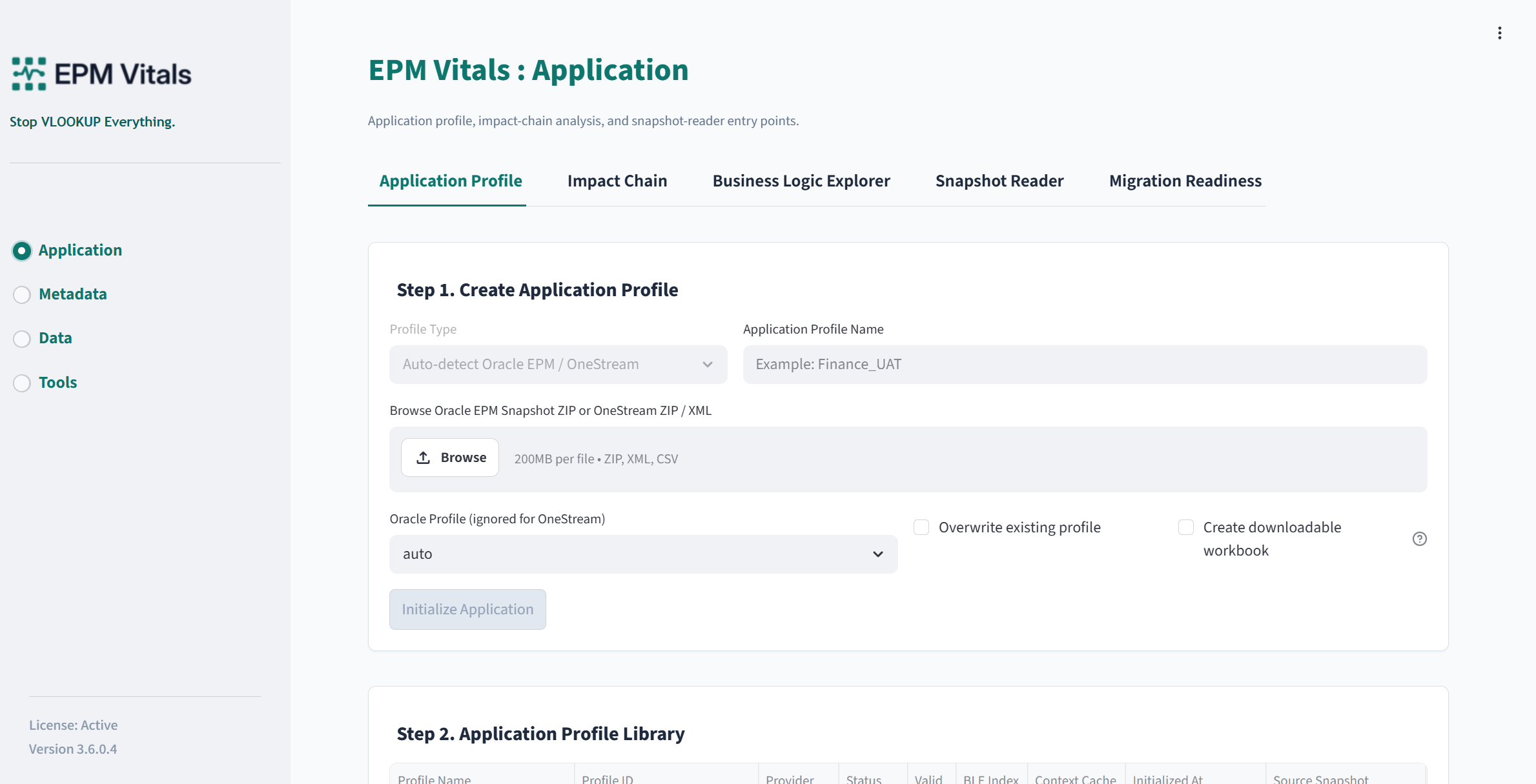
Inputs:
- Profile name.
- Input source:
Upload SnapshotorOracle EPM Pull. - Application snapshot or export package when uploading a local file.
- Oracle EPM Base URL, username, and password when using Oracle EPM Pull.
- Parser profile, often left as
autowhen available. - Optional output parsed workbook setting.
Key buttons:
Test Connection / Build Export PlanPull Profile-only SnapshotRun in backgroundInitialize ApplicationDelete ProfileDownload Workbook
Recommended upload workflow:
- Enter a clear profile name.
- Upload the application snapshot or export package.
- Select the parser profile.
- Click
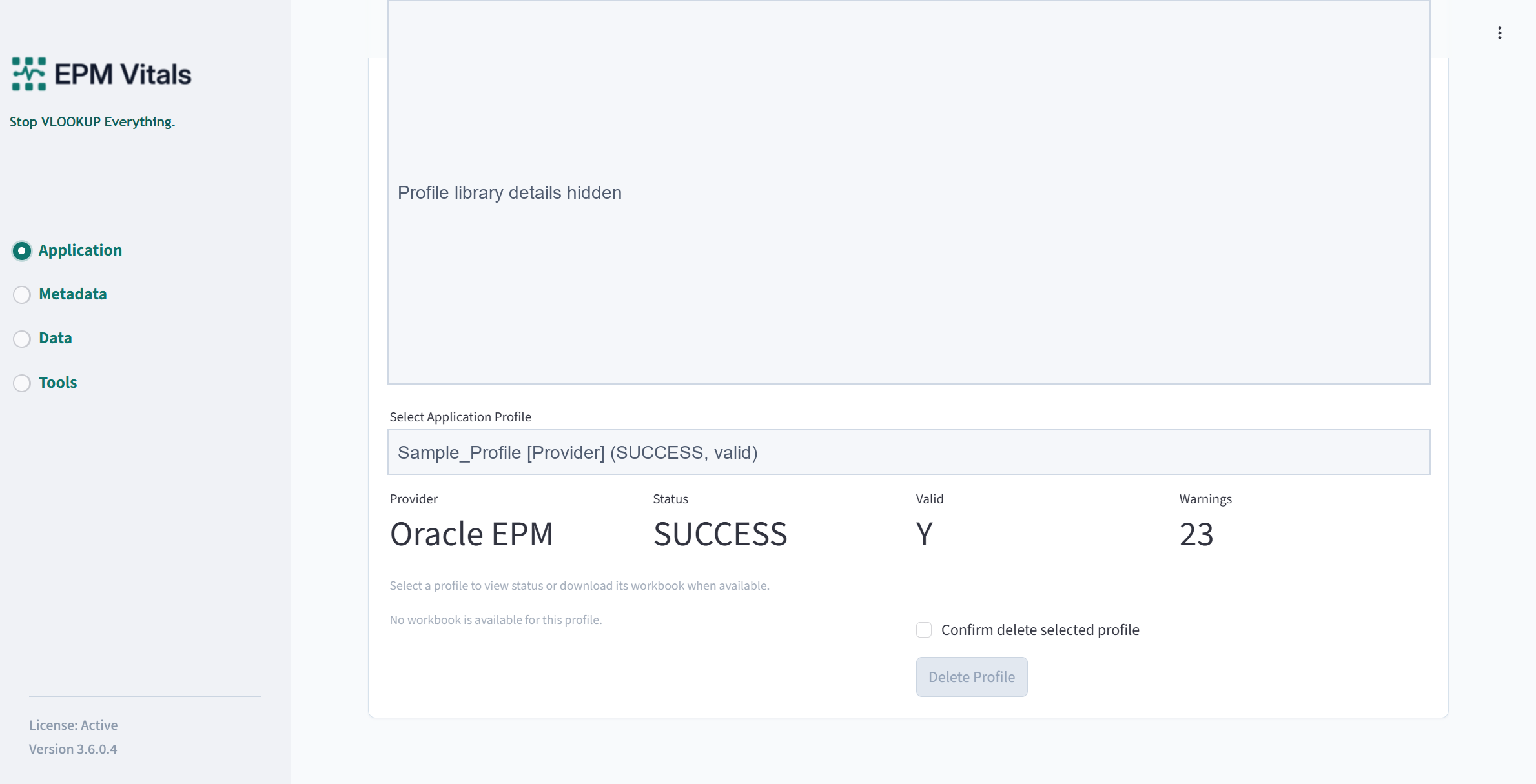
Initialize Application. - Review the detected provider, status, dimensions, member rows, and warning summary.
- Download the parsed workbook if you need evidence or offline review.
- Reuse the Application Profile in Configure Wizard, Impact Chain, Business Logic Explorer, Metadata Catalog, and Mapping Review.
Recommended Oracle EPM Pull workflow:
- Enter a clear profile name.
- Select
Oracle EPM Pull. - Enter the Oracle EPM Base URL, username, and password.
- Click
Test Connection / Build Export Plan. - Review the profile-only export plan. The plan is designed to include profile metadata while excluding Essbase Data.
- Click
Pull Profile-only Snapshot. - After the snapshot is pulled, click
Initialize Applicationfor an immediate build, or clickRun in backgroundif the profile build may take longer. - Review the Application Profile result and use Run History if you need to inspect background job status later.
Oracle EPM Pull behavior:
- EPM Vitals remembers up to five recent Base URLs. Click the Base URL field or its selector to choose a remembered URL.
- EPM Vitals does not store Oracle EPM passwords.
- The export plan uses selected migration artifacts, not a full snapshot pull.
- Essbase Data is always excluded from the profile-only pull.
- Security and Groups and Membership are excluded by default because they may contain sensitive access information that is not required for most profile context.
- Typical included areas are Core metadata, Document Repository, Data Management definitions, and Calculation Manager definitions.
- The generated temporary snapshot name is based on the username and timestamp to avoid exposing EPM Vitals branding in Oracle EPM.
Outputs:
- A reusable Application Profile in the local Application Library.
- A parsed workbook where enabled.
- Structured application context for downstream modules.
Best practices:
- Use one profile per meaningful application version or migration milestone.
- Use sanitized or non-production snapshots for support discussions.
- Reinitialize a profile when the source application export has materially changed.
- Prefer Oracle EPM Pull when you need a profile-only package and want to avoid pulling Essbase Data.
7.2 Snapshot Reader
Use Snapshot Reader to parse a snapshot and export a structured workbook. This is useful when you need a readable inventory of an application package without necessarily creating a reusable profile.
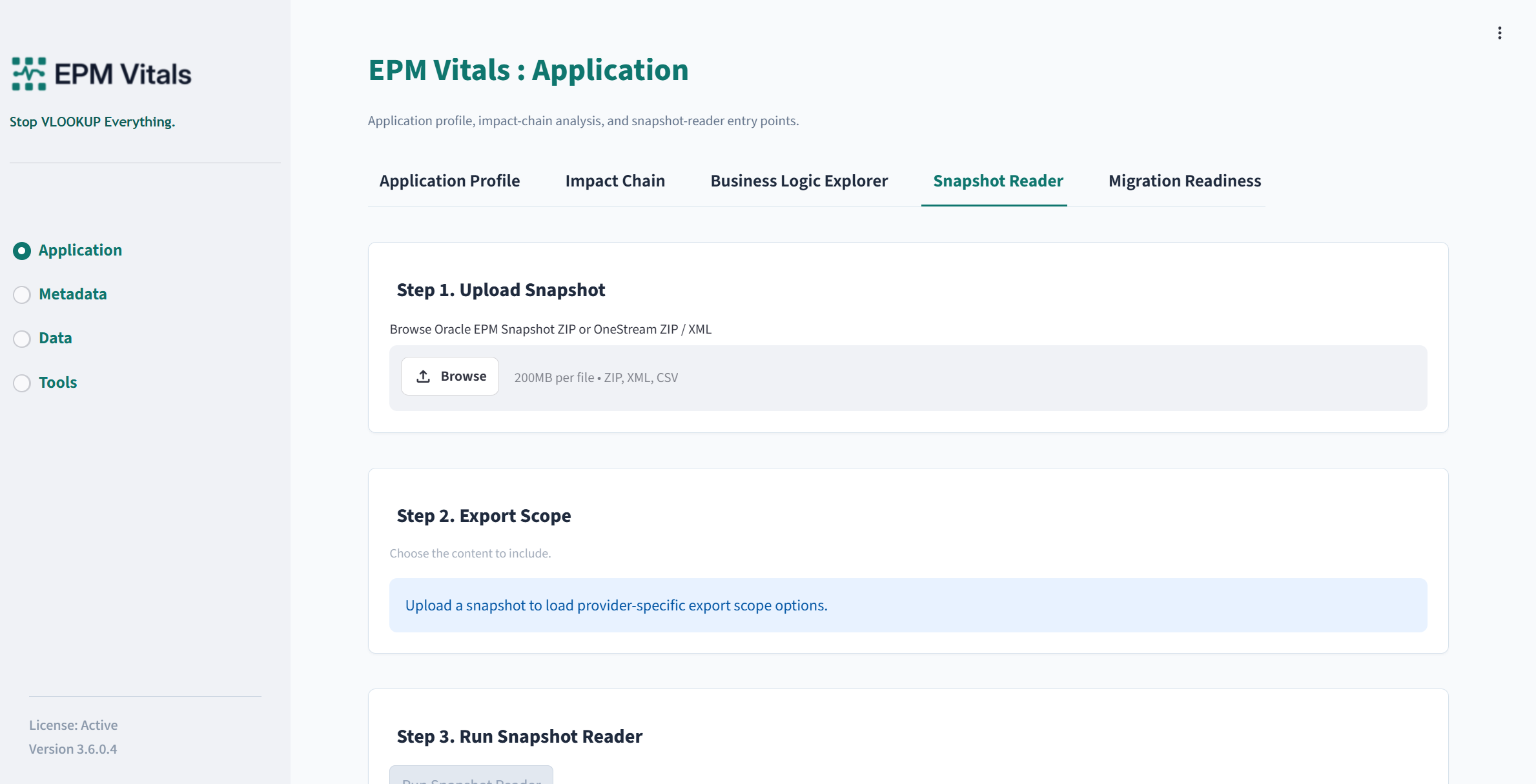
Inputs:
- Snapshot ZIP, XML, or CSV package depending on provider support.
- Provider selection or detected provider.
- Parser profile for Oracle EPM where applicable.
- Export scope settings.
Common export scope options:
- Inventory.
- Application Settings.
- Dimensions.
- Variables.
- FDMEE.
- Artifacts.
- FCCS.
Key buttons:
Run Snapshot ReaderDownload Workbook
Recommended workflow:
- Upload the snapshot file.
- Confirm the detected provider.
- Select the export scope.
- Click
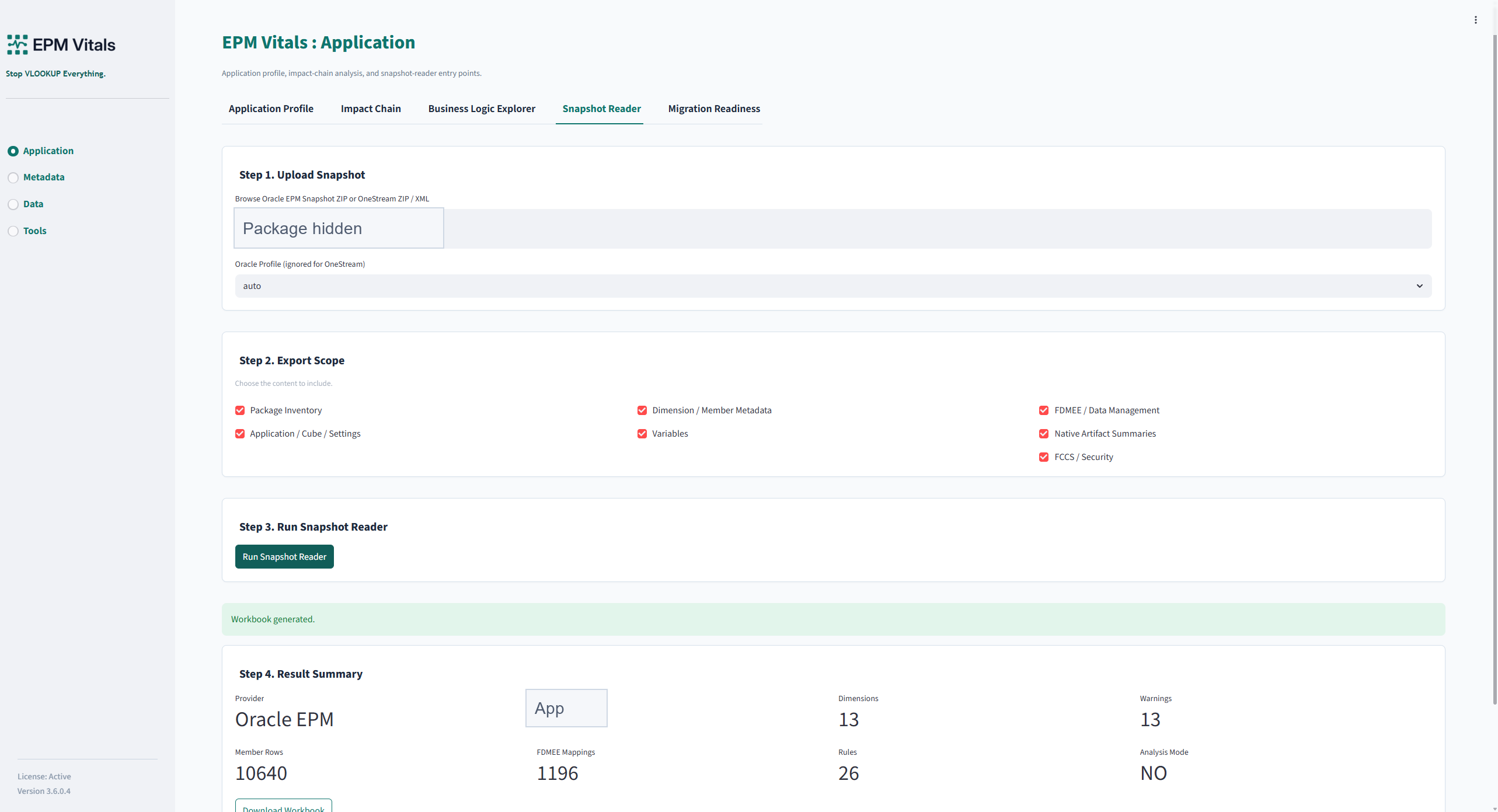
Run Snapshot Reader. - Review summary metrics such as provider, application, dimensions, warnings, member rows, integrations, rules, and analysis mode.
- Download the workbook.
Outputs:
- Snapshot inventory workbook.
- Warnings or review notes.
- Local run record.
7.3 Impact Chain
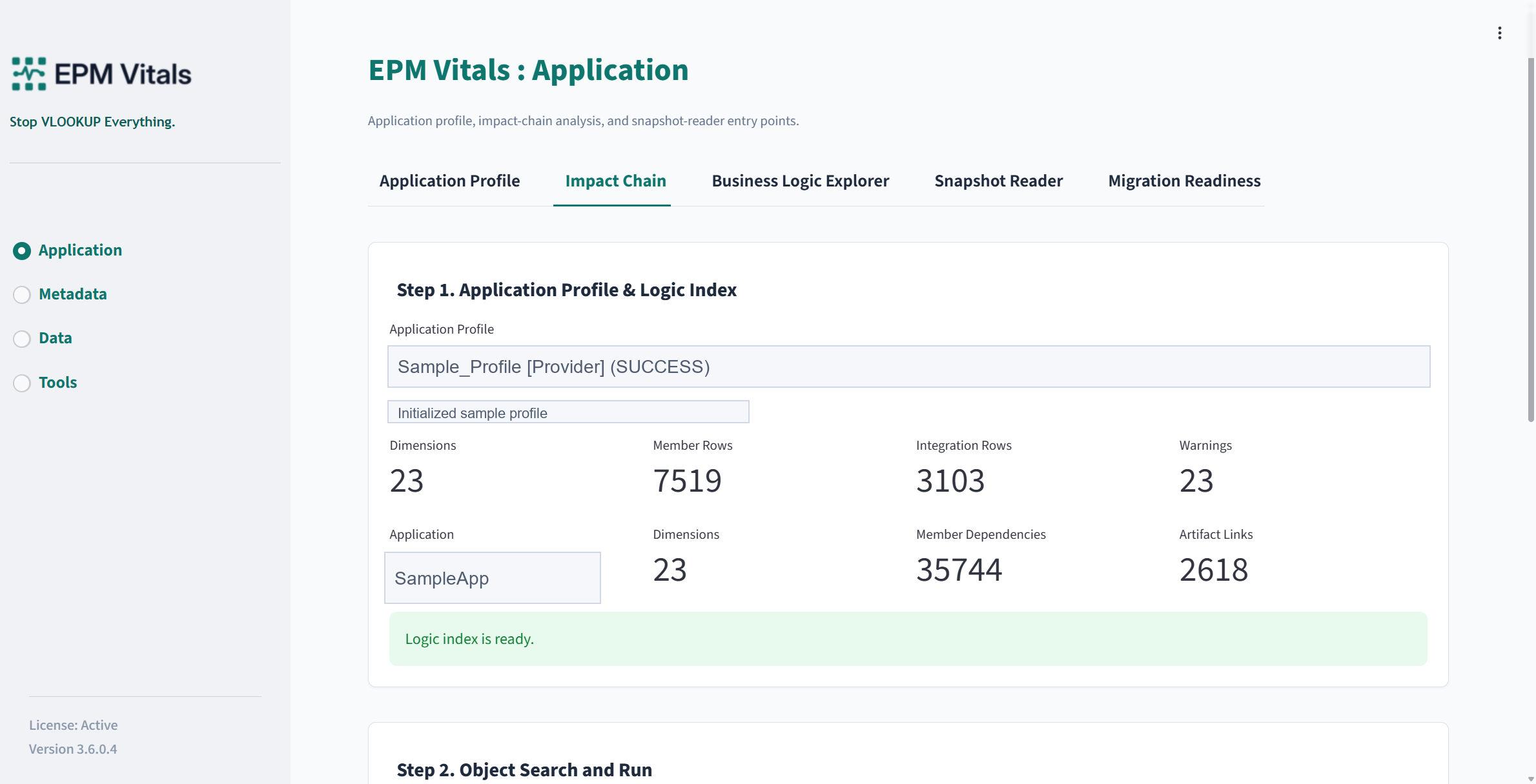
Use Impact Chain to inspect what may be affected by a member, rule, integration, form, report, or other application object.
Inputs:
- Application Profile.
- Logic index or profile-local evidence index where available.
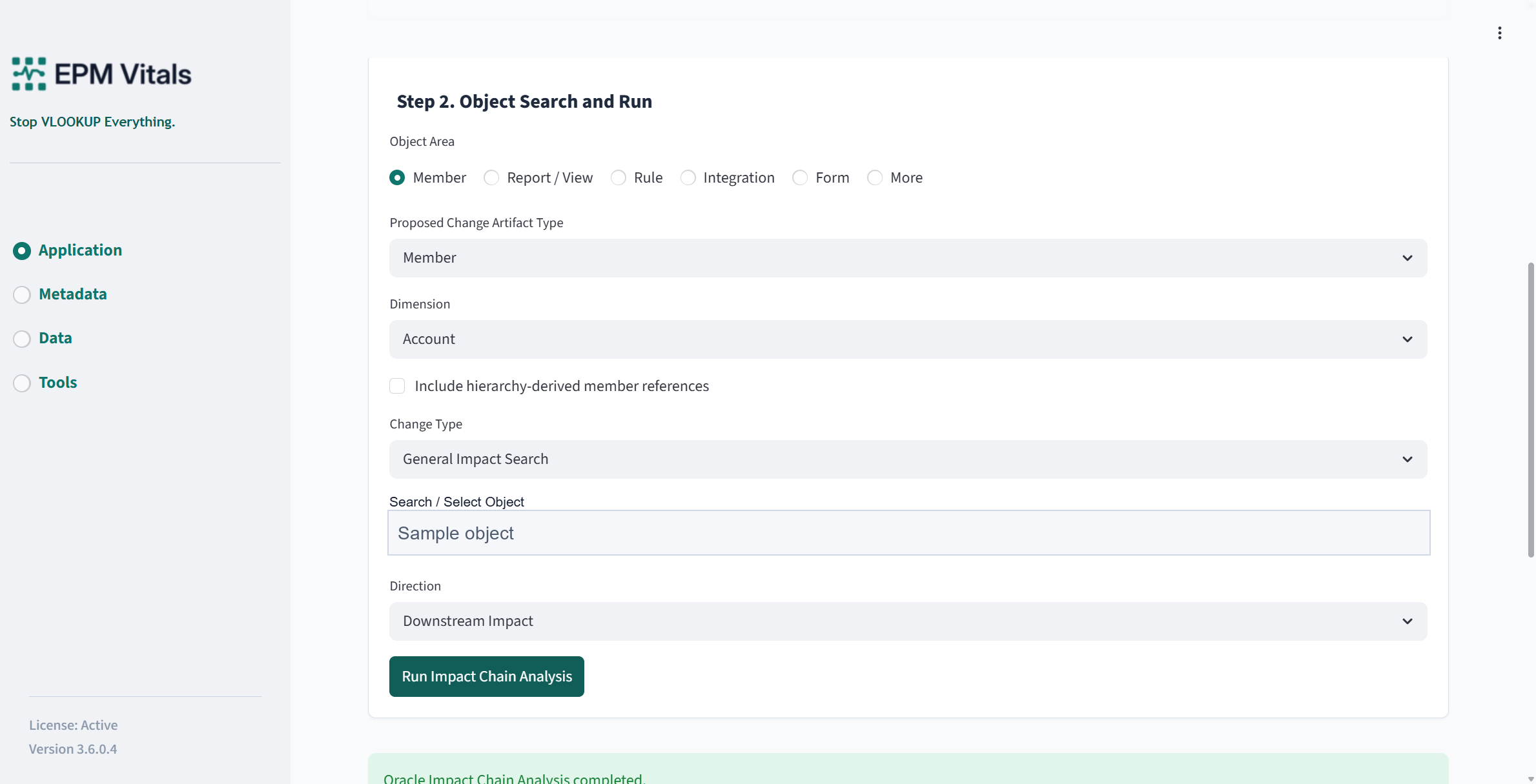
- Object search term or selected object.
Key buttons:
Load Logic IndexBuild / Rebuild Logic IndexRun Impact Chain AnalysisDownload Impact Chain Report
Recommended workflow:
- Select an Application Profile.
- Load the logic index.
- Search for the object you want to analyze.
- Select the correct object and context.
- Click
Run Impact Chain Analysis. - Review upstream and downstream evidence.
- Download the impact report.
Typical use cases:
- Check what a member change may affect.
- Review rule migration impact.
- Understand which forms, integrations, or calculations reference an object.
- Prepare evidence before making structural application changes.
7.4 Business Logic Explorer
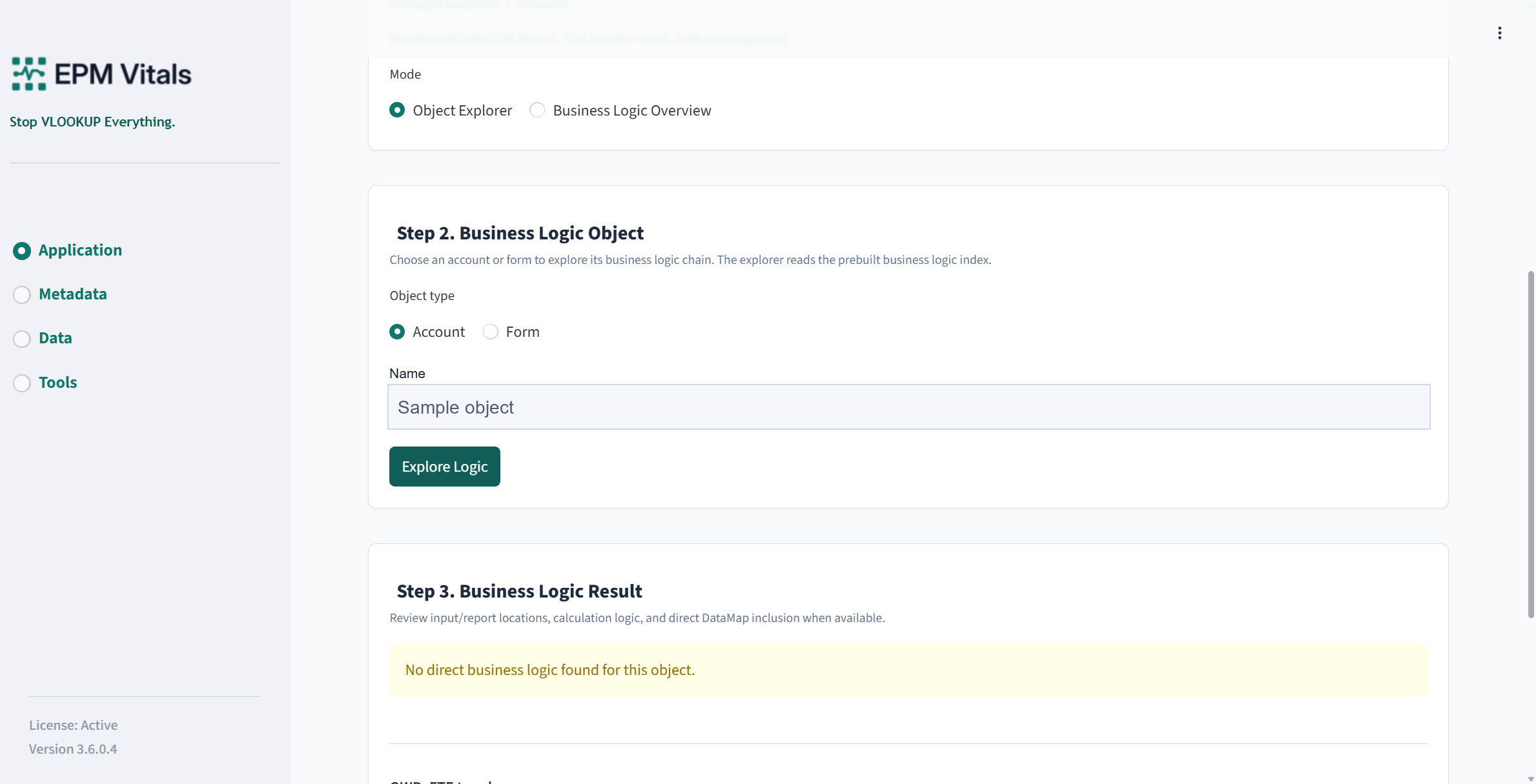
Use Business Logic Explorer to search, inspect, and explain business logic evidence in an Application Profile.
Inputs:
- Application Profile.
- Object type or search keyword.
- Selected object or calculation item.
Key buttons:
Load Application ProfileReload Application ProfileExplore LogicBackEvidenceOpen in Object Query
Recommended workflow:
- Load an Application Profile.
- Search for an account, member, form, rule, or other supported object.
- Select an object from the result list.
- Click
Explore Logic. - Review the business logic summary, calculation range, conditions, and evidence.
- Use
Evidenceto inspect supporting rows. - Use
Open in Object Querywhen you need to continue investigation in the object explorer.
Outputs:
- Business logic summary.
- Evidence references.
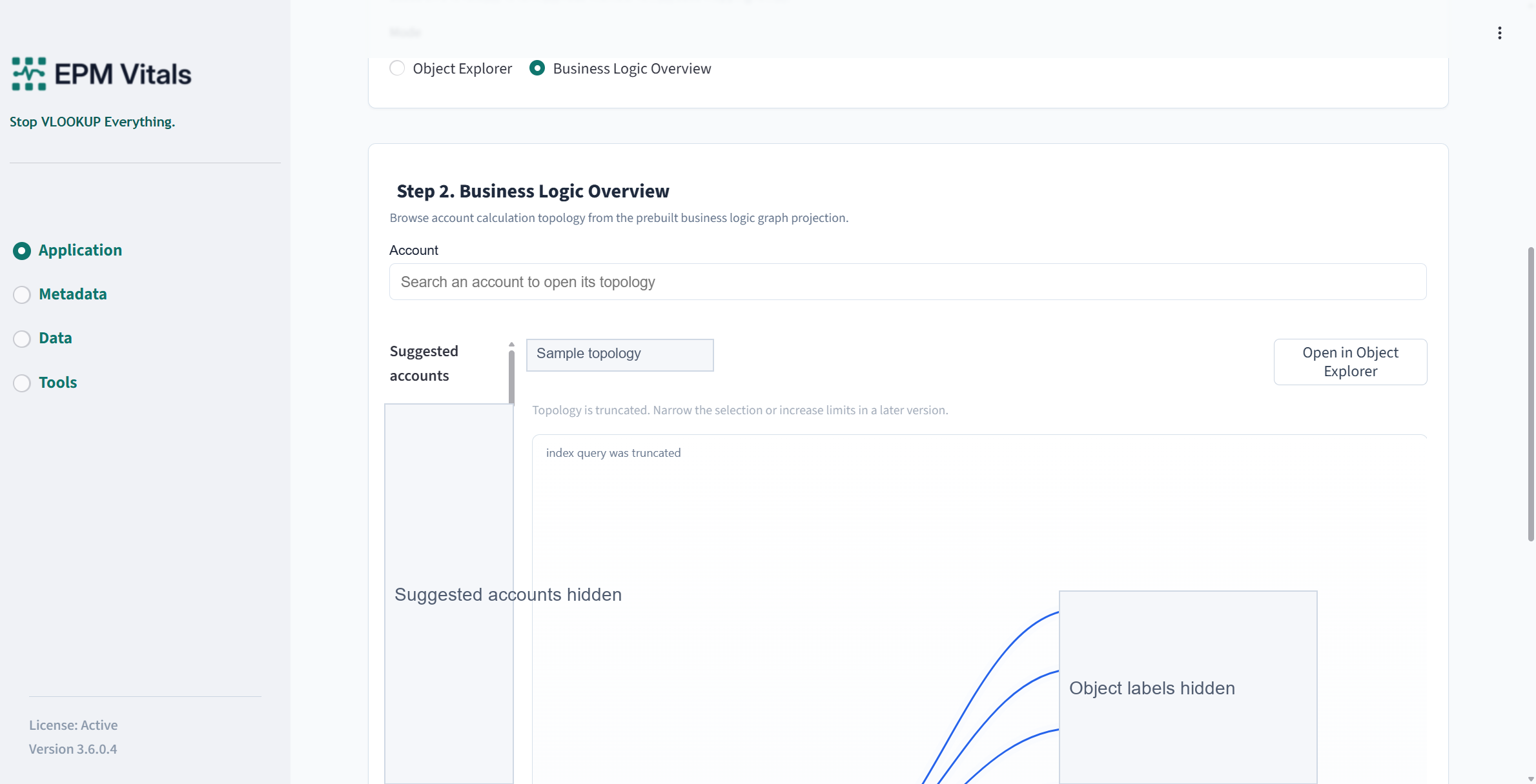
- Topology or relationship view where available.
- Review-ready explanation of how selected logic is connected.
7.5 Migration Readiness
Use Migration Readiness to review whether application artifacts or profiles are ready for migration planning.
Inputs:
- Baseline profile, candidate profile, or related migration package.
- Readiness scope where available.
Recommended workflow:
- Select the baseline and candidate context.
- Run the readiness review.
- Review blockers, warnings, and review items.
- Download the readiness result.
Outputs:
- Migration readiness summary.
- Blocking items.
- Warning items.
- Review queue and workbook evidence.