
Guide Chapters
Product support / Chapter 08
8. Data Workspace
Use the Data workspace to generate configs, validate files, convert outputs, and check readiness.
The Data workspace focuses on building configs, validating files, converting formats, and checking data readiness.
8.1 Configure Wizard
Use Configure Wizard to generate a draft configuration workbook from CSV files, Excel grids, templates, and Application Profile context. Configure Wizard is the main place to create draft configs. Validation and Convertor consume reviewed configs instead of generating them privately.
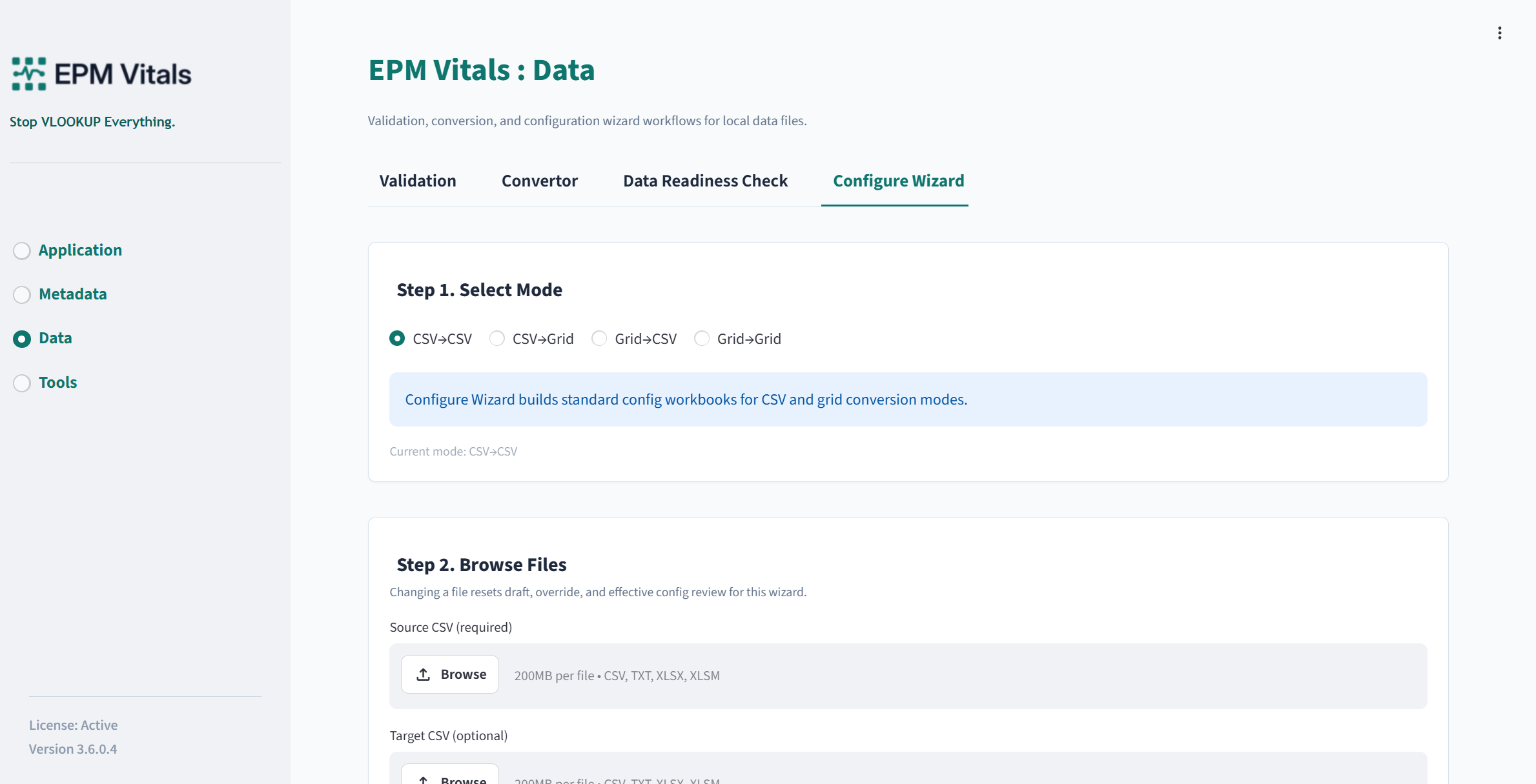
Modes:
CSV -> CSVCSV -> GridGrid -> CSVGrid -> Grid
Inputs:
- Source CSV or source grid.
- Target CSV or target grid where required.
- Application Profile where using profile-assisted generation.
- Location or context where required.
- Template or previous config where using template-guided setup.
Key buttons:
Run Layout Detection and Extract Member MappingApply MappingGenerate Draft ConfigRun Config ValidationDownload Effective Config WorkbookSave Effective Config to Template LibraryDownload Current Config
Recommended workflow:
- Select the conversion mode.
- Upload source and target files.
- Choose the target layout source, such as Application Profile Assisted or Template Guided.
- Select the Application Profile and Location if required.
- Run layout detection and member mapping extraction.
- Review dimension mapping, member mapping, and Parent Ignore settings.
- Apply mapping changes.
- Generate the draft config.
- Run config validation.
- Download the effective config workbook.
- Save the effective config to the Template Library if it is ready for reuse.
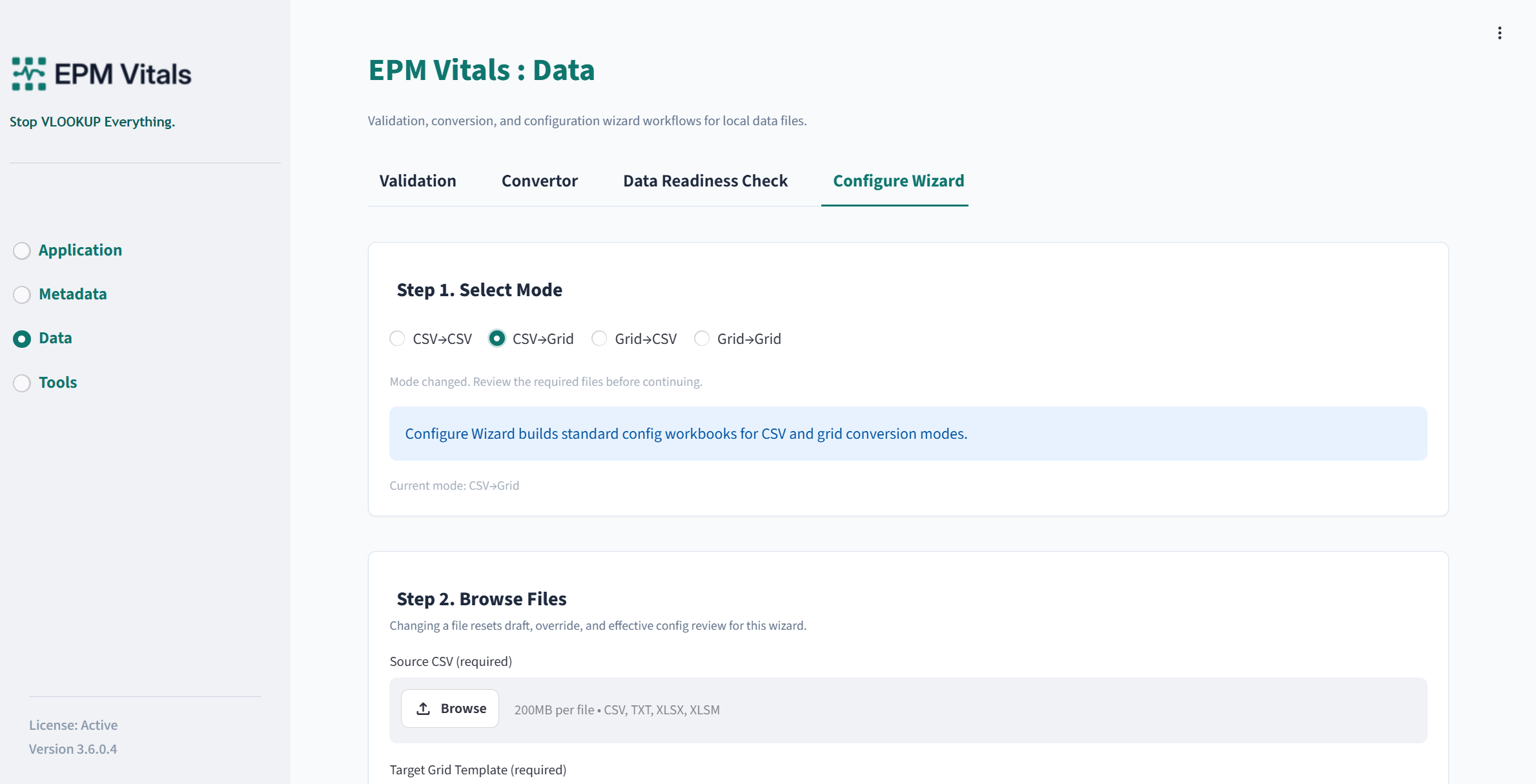
Review the detected layout and mapping before generating the final workbook. The review step is where teams should confirm dimension mapping, member mapping, and any ignored parent behavior.
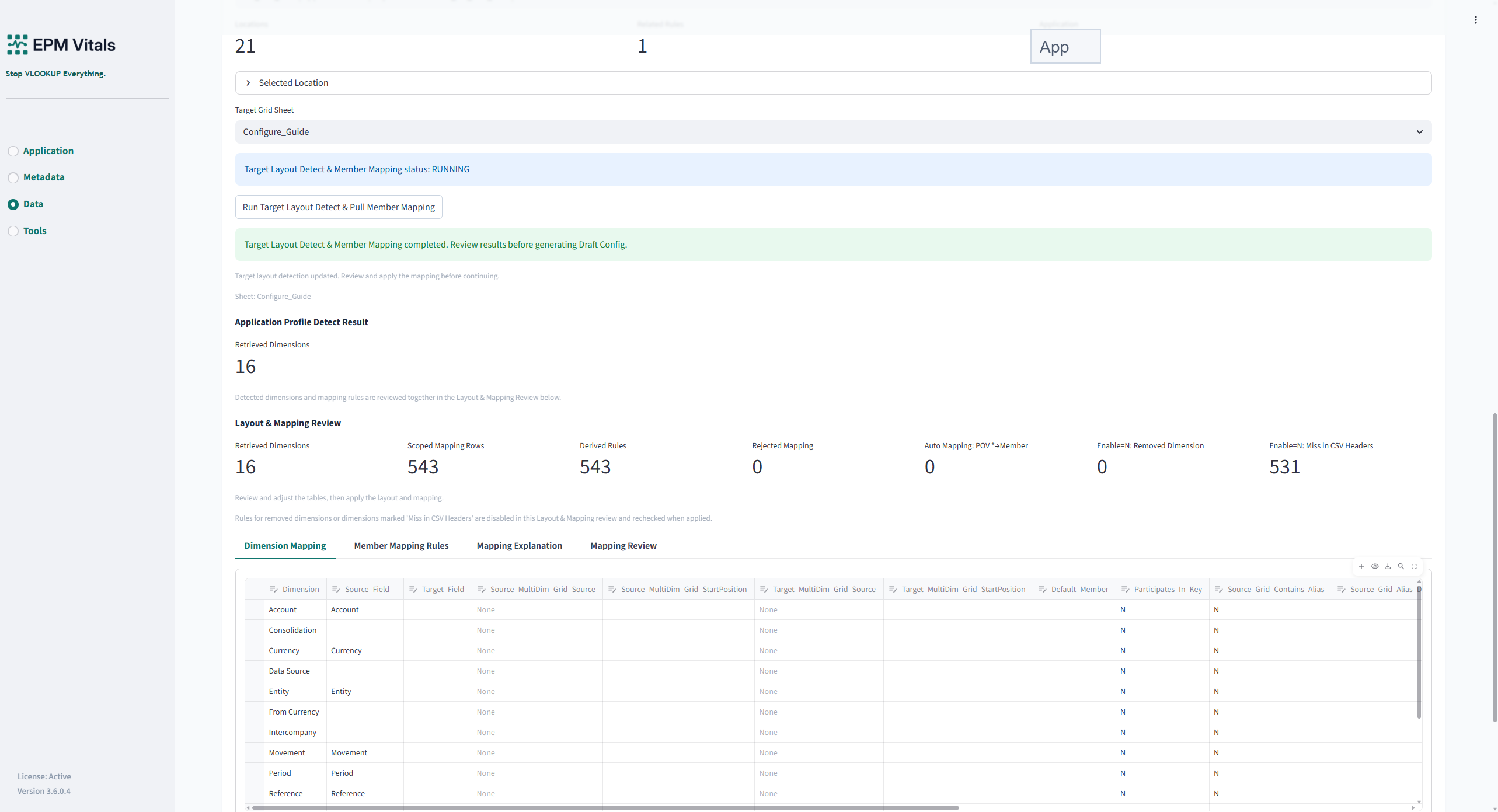
After the draft config is generated, run config validation and confirm that the effective config is valid before using it in Validation or Convertor.
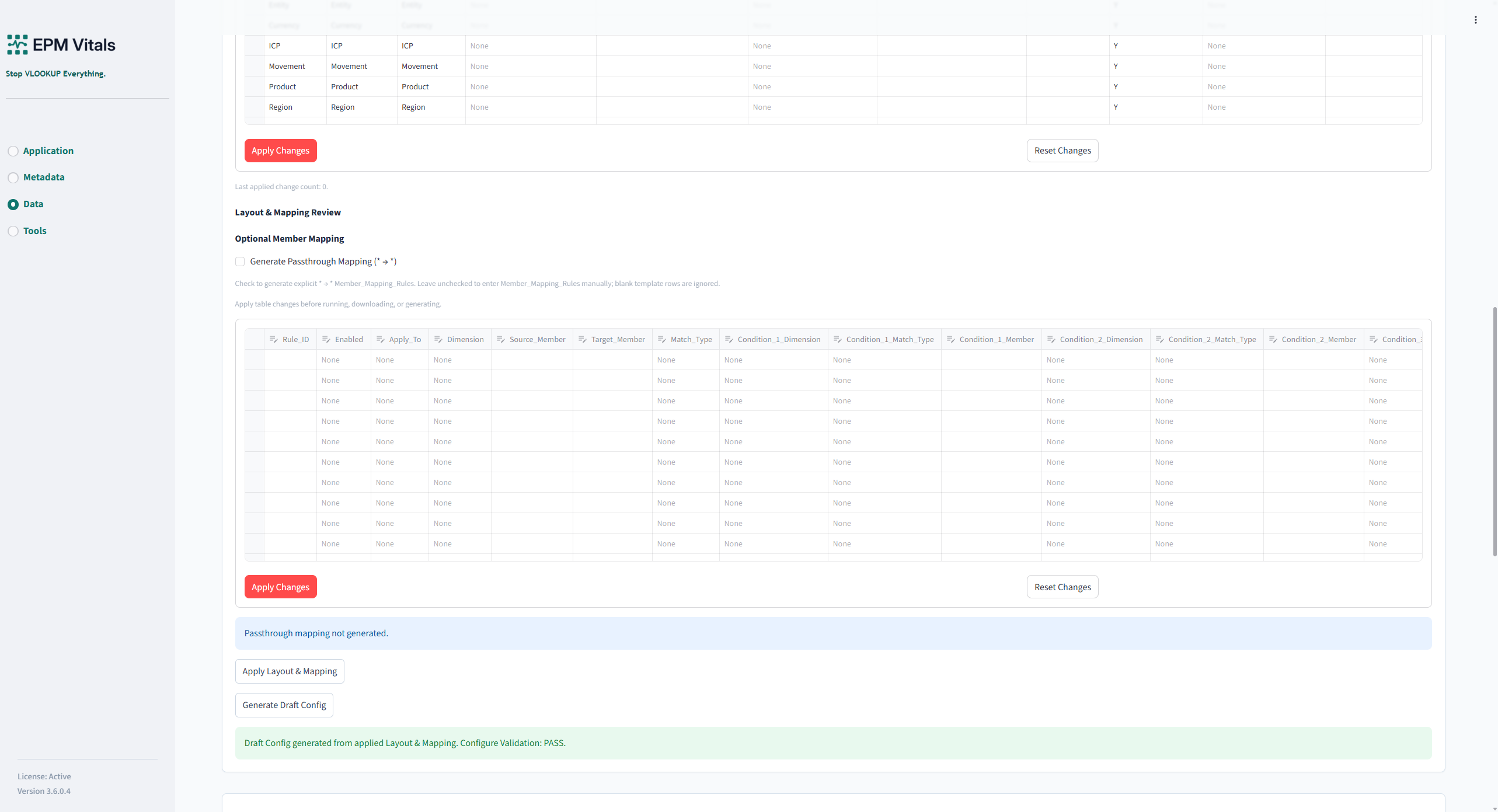
Typical output workbook sheets include:
Dimension_Mapping_UsedMember_Mapping_RulesMapping_ExplanationMapping_Review_ItemsValidation_RulesOutput_SettingsCB_Generation_Context
Best practices:
- Treat Configure Wizard as the main place to generate draft configs.
- Review generated mappings before using the config in Validation or Convertor.
- Save only reviewed and validated configs to the Template Library.
8.2 Validation
Use Validation to compare source and target files using a configuration workbook.
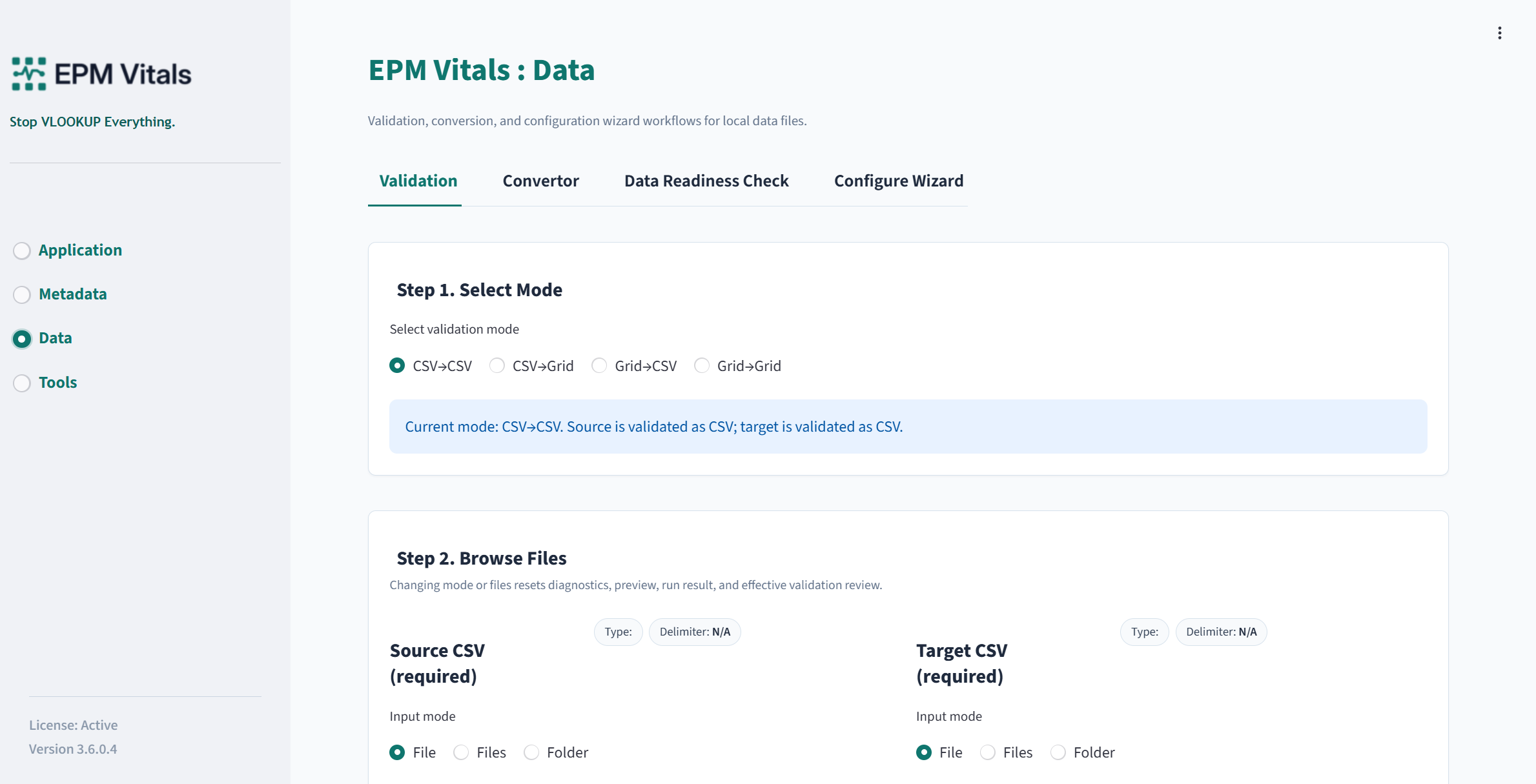
Inputs:
- Source file.
- Target file.
- Configuration workbook.
Modes:
- Single validation.
- Batch validation.
Key buttons:
Run File DiagnosticsRun ValidationRun Batch ValidationSave Current Config to Template LibraryOpen Run FolderOpen Result
Recommended workflow:
- Upload or select the source file.
- Upload or select the target file.
- Upload or select the configuration workbook.
- Review the config summary.
- Run file diagnostics if you want to check file readability before the main run.
- Click
Run Validation. - Review passed, failed, warning, and difference items.
- Open the result workbook or run folder.
- Save the config to the Template Library only when it has been reviewed.
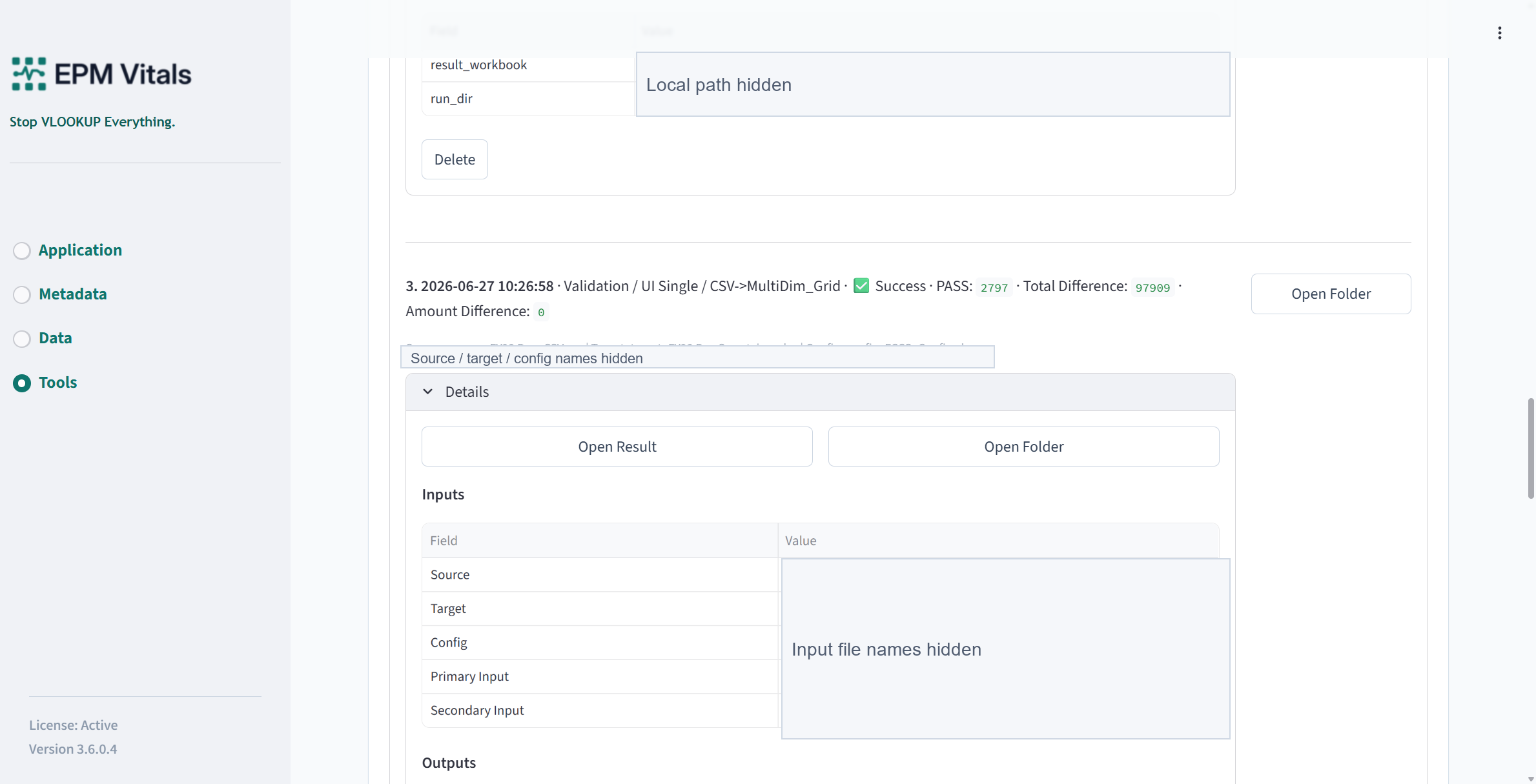
Outputs:
- Validation result workbook.
- Difference detail.
- Rule hit summary.
- Run summary.
- Local run history entry.
8.3 Convertor
Use Convertor to transform data from one supported format into another using an effective configuration workbook.
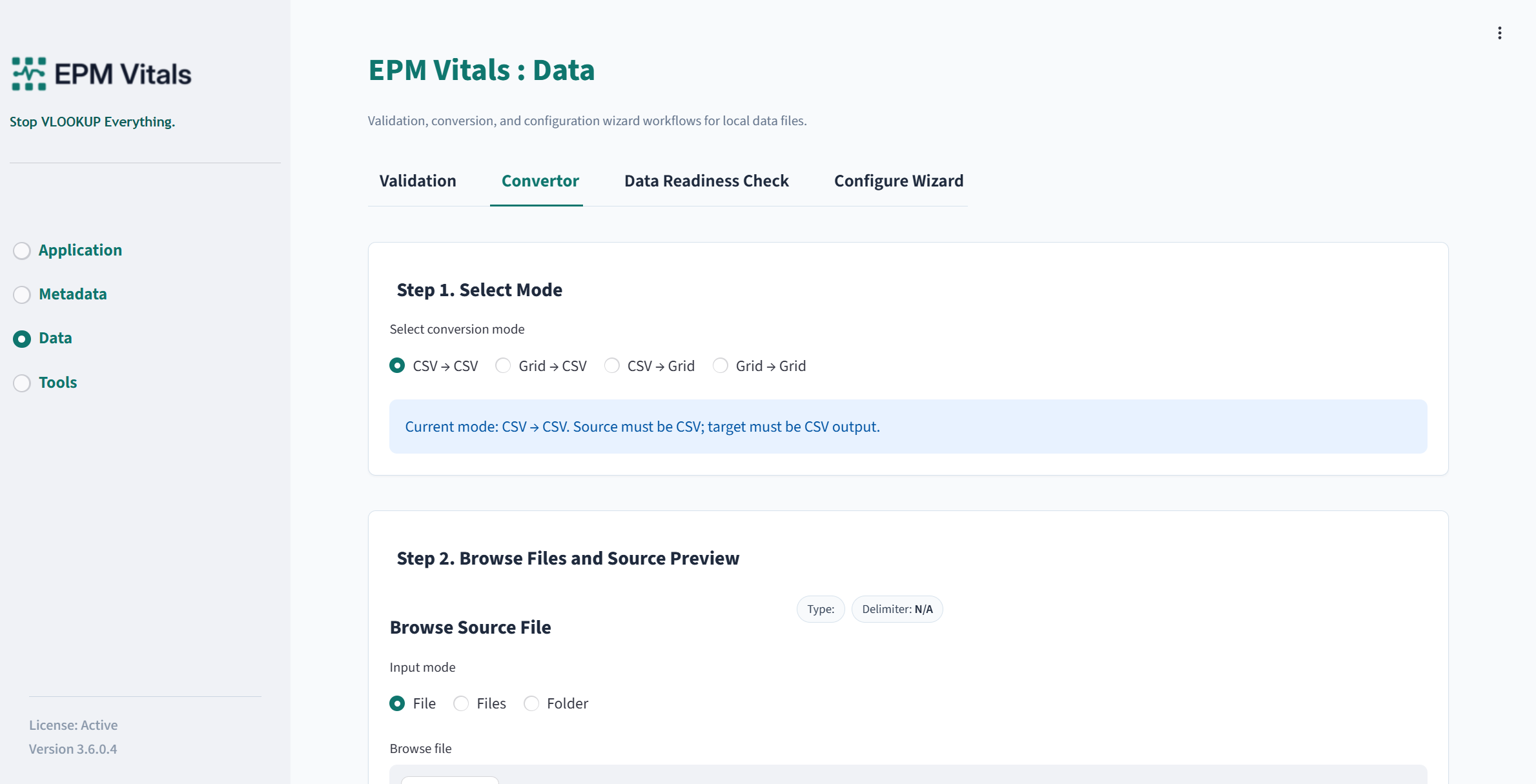
Inputs:
- Source data file.
- Configuration workbook.
- Target template or target grid where required.
Key buttons:
Run ConvertorRun Batch ConvertorClear Target Grid Before WriteRun Validation Audit After ConvertSave Effective Config to Template Library
Recommended workflow:
- Select the conversion mode.
- Upload the source data.
- Upload the configuration workbook.
- Upload the target template or grid if required.
- Choose whether to clear the target grid before writing.
- Choose whether to run a validation audit after conversion.
- Click
Run Convertor. - Review the output and audit result.
- Open the result file or run folder from the module or Run History.
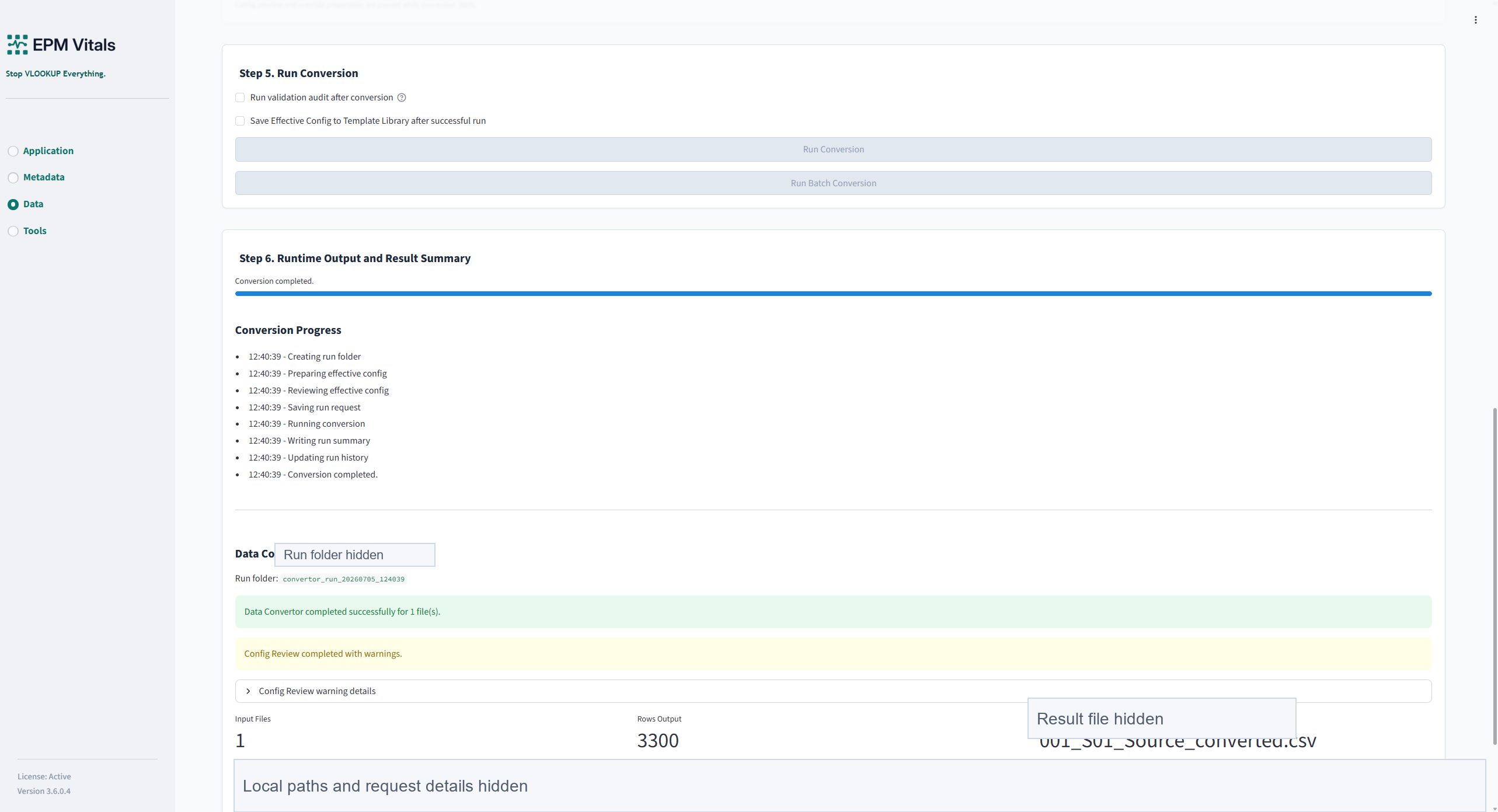
Outputs:
- Converted data file.
- Optional validation audit result.
- Run summary.
- Local run history entry.
Best practices:
- Use a reviewed config from Configure Wizard or the Template Library.
- Run Validation before and after conversion when the project requires evidence.
- Keep target templates under version control or project document control.
8.4 Data Readiness Check
Use Data Readiness Check to review whether data and mappings are ready for migration or delivery.
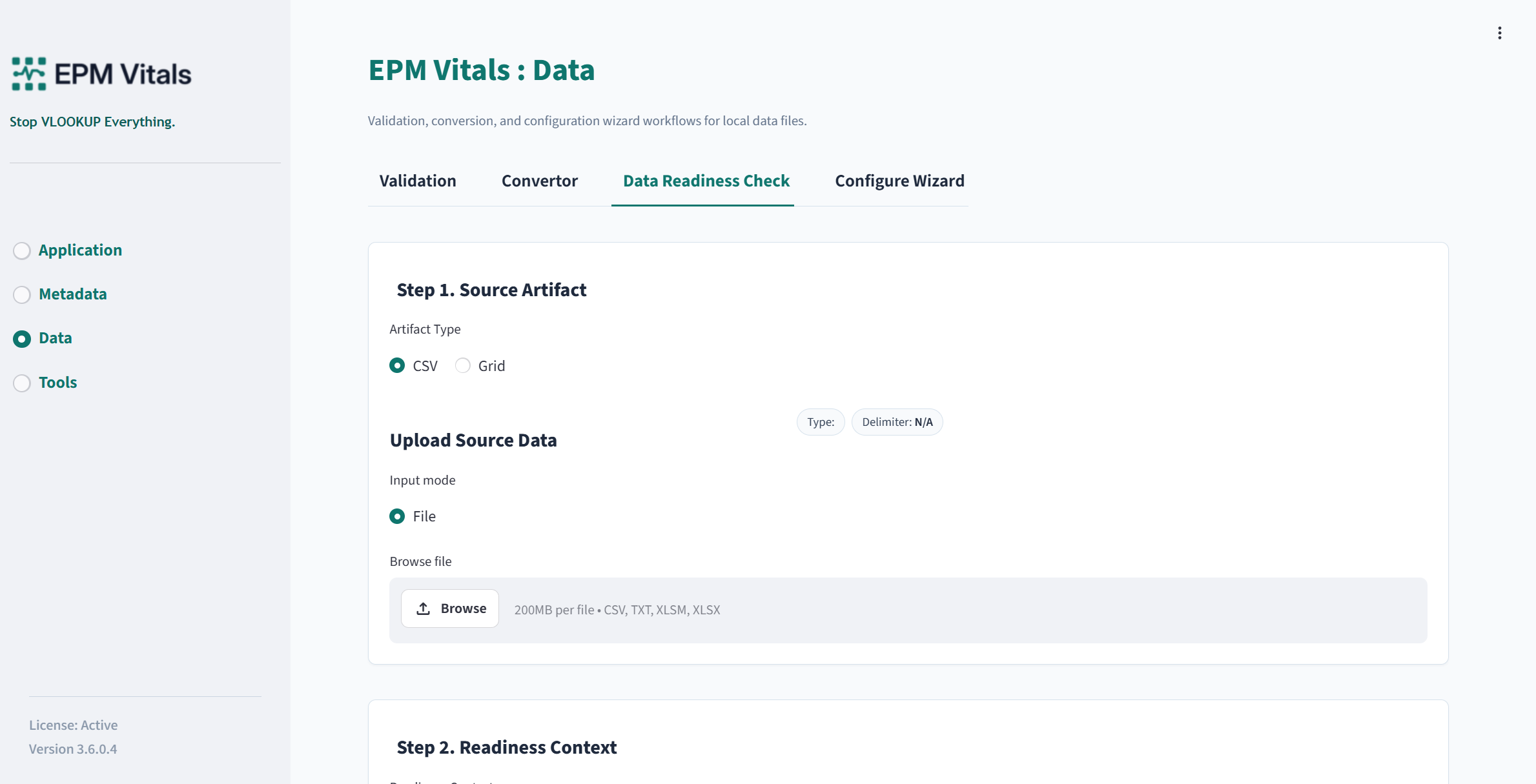
Inputs:
- Artifact kind.
- Project or application context.
- Config workbook.
- Reviewed mapping where available.
Key buttons:
Prepare Readiness CheckUse Reviewed MappingRun Data Readiness CheckDownload Readiness ResultDownload Used ConfigDownload Generated Config
Recommended workflow:
- Select the artifact kind and context.
- Load or generate the relevant config.
- Use reviewed mapping if available.
- Prepare the readiness check.
- Click
Run Data Readiness Check. - Review blockers, warnings, and recommended actions.
- Download the readiness result and used config.
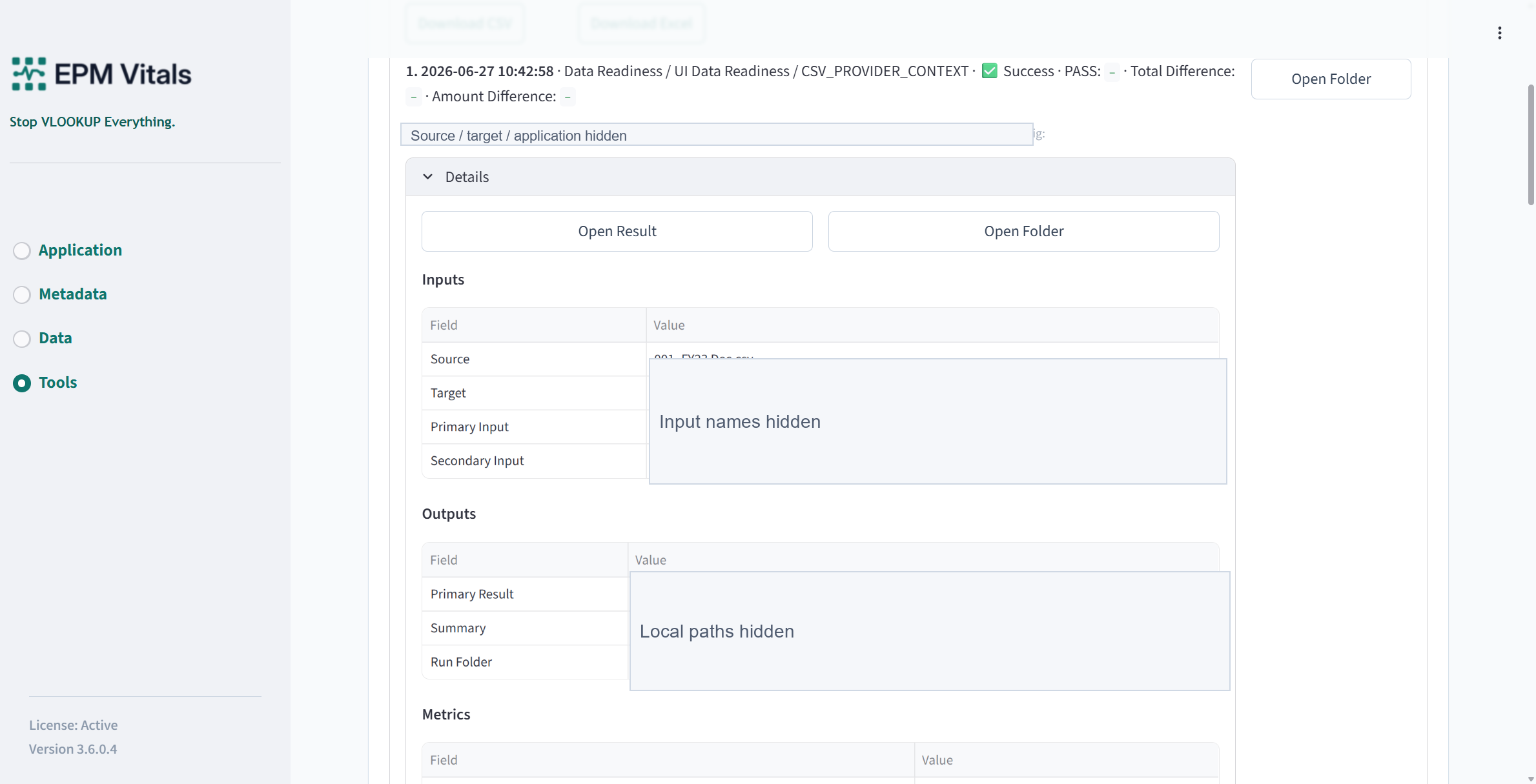
Outputs:
- Data readiness workbook.
- Used or generated config.
- Review queue.
- Run history entry.